The Drive Home screen
The Drive Home is the first thing you see when you open LearnerLog. It's designed so you can start a drive in one tap and see your progress toward the Texas 30-hour requirement at a glance.
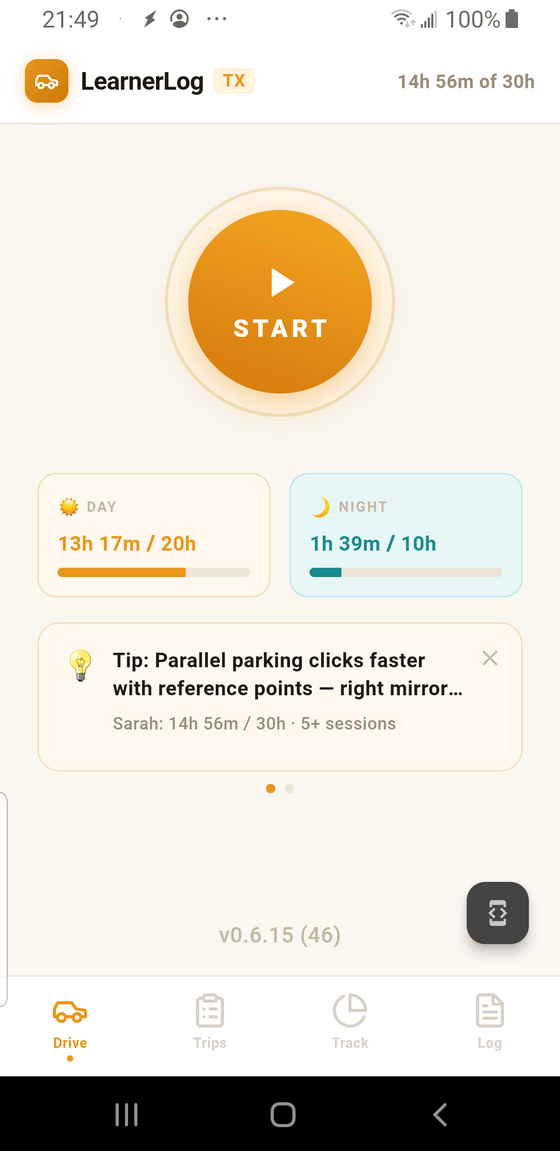
- 1 Progress toward 30 hours. Total hours logged so far, out of the 30 hours Texas requires. LearnerLog applies the state's one-hour-per-day credit cap automatically, so the number you see here is what will count.
- 2 START. Tap to begin recording the next drive. GPS turns on and a notification stays in your notification shade so the drive keeps recording even if your phone screen locks.
- 3 Daytime total. Daytime practice hours logged, out of the 20 daytime hours Texas requires. The bar fills as you add more daytime minutes.
- 4 Nighttime total. Nighttime hours logged, out of the 10 nighttime hours required. Drives logged between sunset and sunrise count as night.
What else is on this screen
Below the day/night cards you'll see a rotating tip card — a short piece of advice that changes daily. Tap the "×" to dismiss it; a fresh one appears tomorrow.
At the very bottom there are four tabs: Drive, Trips, Track, and Log. The orange dot shows which one you're on. Drive is home; the other three are covered in their own guides.
How to use it
- Open LearnerLog — you land on this screen.
- Check the progress header to see where you stand for the day.
- When your teen is behind the wheel and ready, tap START.
- Drive normally. The app records GPS and time on its own.
What happens next
After you tap START, you move to the Recording screen. When you tap STOP there, you land on the Trip Summary with the route, stats, and the per-activity breakdown you can adjust if the auto-categorization got something wrong.