Guide
How LearnerLog works.
Quick, practical explanations for every screen and every tricky feature. Each page is short enough to read on your phone at a traffic light.
Six main screens.
Tap any card to learn what it shows and what you can do there.
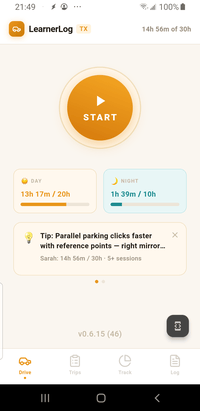
Drive Home
The screen you see when you open the app. Start a drive and check your progress at a glance.
Read guide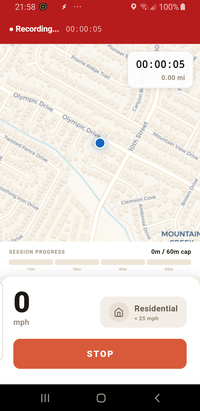
Record a drive
What happens when you tap START — live GPS, distance, time, and the current category.
Read guide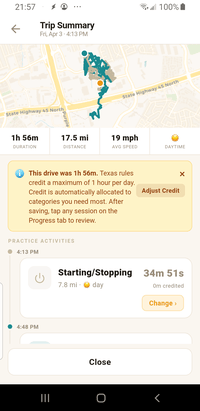
Trip summary
After every drive: the route on a map, the stats, and the per-activity breakdown you can edit.
Read guide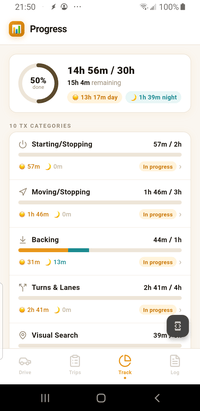
Progress
Your 30-hour dashboard. How LearnerLog tallies progress by category, day, and night.
Read guide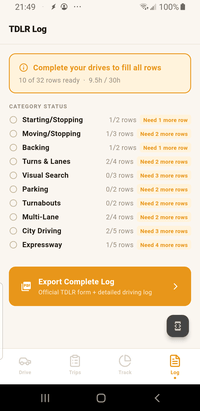
TDLR log + export
The TDLR-required categories, how many rows each needs, and exporting the auto-filled PDF.
Read guide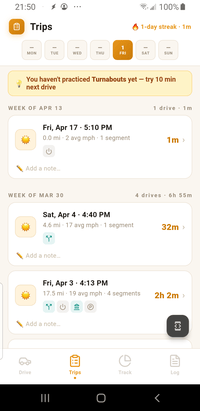
Trips history
Every drive you've logged, grouped by week, with quick stats per trip.
Read guideThe tricky bits, walked through.
These are the flows that usually prompt parents to ask us "wait, how do I…?"
- Reassign a segment Change the category LearnerLog picked — mark a chunk as Turns & Lanes instead of City.
- Split a segment Break a single stretch into multiple practice activities — parking drills inside a city drive, etc.
- Merge adjacent segments Combine two same-category pieces into one clean segment.
- The 1-hour-per-day credit cap Texas credits a maximum of 60 minutes of practice per day. How LearnerLog decides which minutes count.
- Add a practice activity manually Parking, backing, and other low-speed drills GPS can't detect — add them in under 30 seconds.